Getting Started
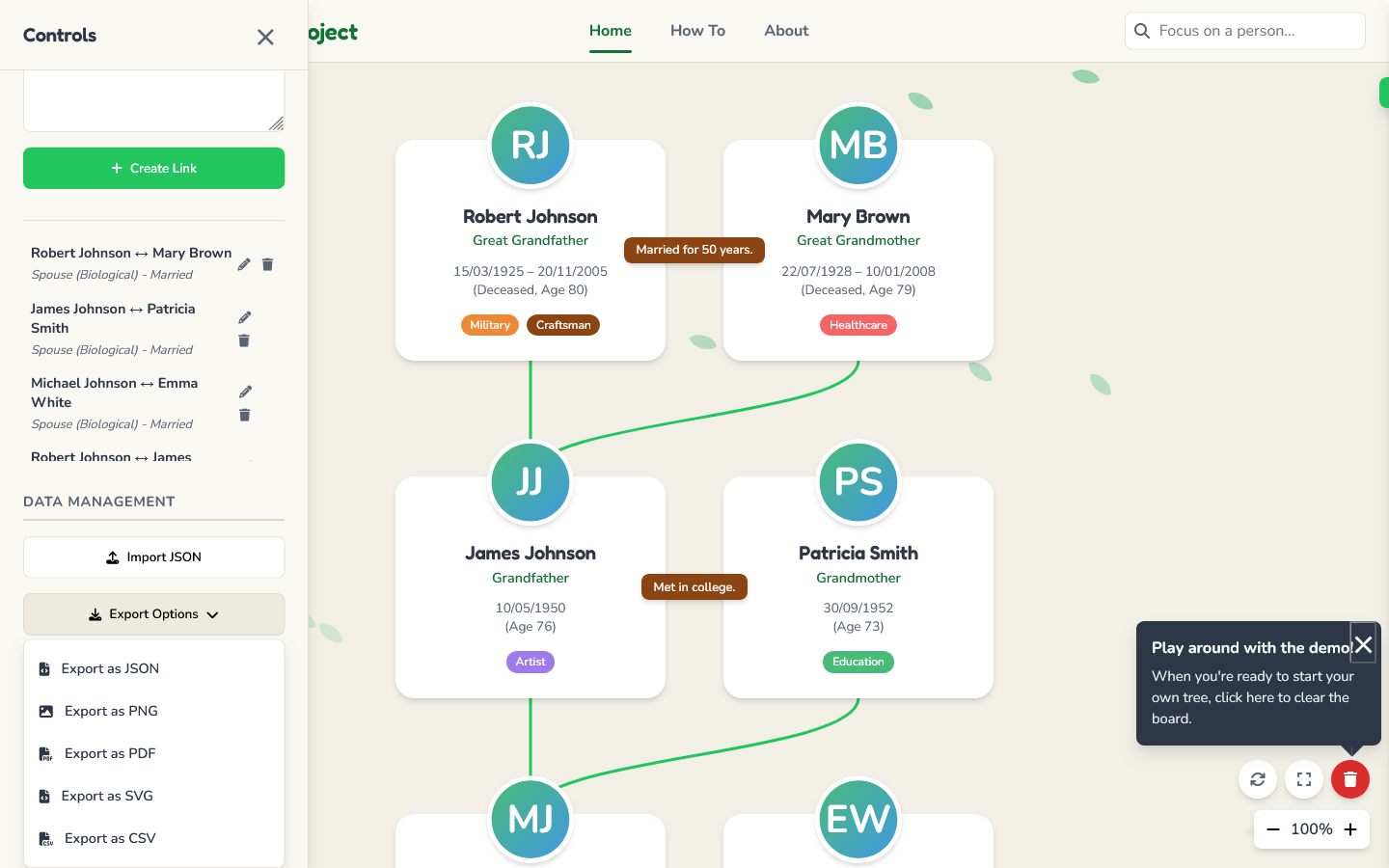
Welcome! This guide will walk you through all the features of the application. The project loads with a sample family tree to demonstrate its capabilities. To start fresh, simply click the red trash can icon () at the bottom right. This will clear the canvas and present a large green plus button to add your first family member.

Navigating the Tree
Your family tree is an interactive canvas. You can move around it easily:
- Pan: Click and drag on any empty space on the background to move the entire tree around.
- Zoom: Use the +/- buttons in the bottom-right corner to zoom in and out. You can also use your mouse wheel for more precise control.
- Reset View: Click the circular arrow button () to reset the zoom, position, and any active filters to the default state.
- Fullscreen: Use the expand icon () to enter a distraction-free fullscreen mode.

Editing a Person
Each person on the tree is represented by a card. To edit someone's details:
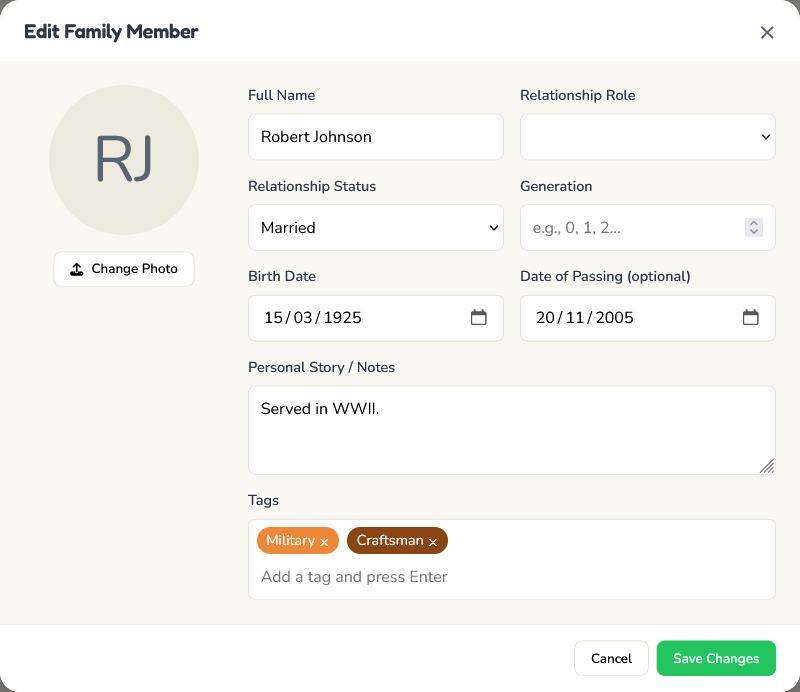
- Open the Editor: Simply double-click on any person's card.
- Update Information: In the pop-up window, you can change their name, their personal **Relationship Status** (e.g., Single, Married), assign their **Relationship Role** (e.g., Son, Mother), and set their **Generation Number**.
- Generation Number: This number (e.g., 0 for the oldest generation, 1 for their children, etc.) is crucial for positioning them correctly in the tree's hierarchy.
- Change Photo & Add Tags: You can also upload a photo and add descriptive tags to categorize people.
Managing Relationships
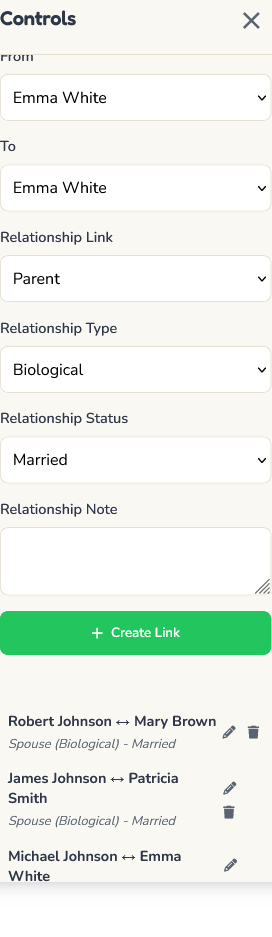
Connections are managed in the Controls sidebar. This is where you define how two people are linked.
- Create a Link: In the "Relationship Manager," select two people from the dropdowns. Then, define the connection using the options for **Link**, **Type**, and **Status**. You can also add an optional **Note**.
- Important for Parent Links: For "Parent" links to work correctly, ensure the parent and child have different Generation Numbers set on their cards first. The application will prevent you from linking two people in the same generation as a parent and child.
- Edit/Delete: Existing relationships are listed below the form. Use the pencil () to edit the link's details in a pop-up, or the trash () icon to remove the connection entirely.
Using the Controls
The "Controls" button () in the header opens the sidebar with powerful tools:
- Focus Search: The search bar in the main menu lets you quickly find and center the view on a specific person.
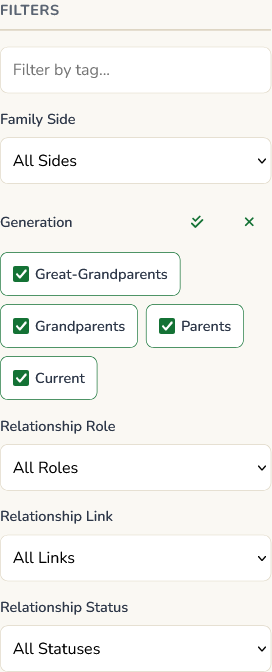
- Filters: Use the dropdowns to filter your tree by a person's Role, their Status, the type of Links connecting them, or by a specific Tag.
- View Options: Use the toggle switches to independently show or hide deceased members, the connection lines, the roles on the cards, and the notes on the lines. A legend is provided to explain the color coding.
Exporting & Saving
You can save and share your work using the "Data Management" section in the Controls sidebar.
- Import JSON: Load a previously saved family tree from a JSON file to continue your work.
- Export Options: Save your tree in various formats. **JSON** is recommended for backing up and re-importing your data. PNG, PDF, and SVG create visual snapshots for printing or sharing. CSV exports the raw data to a spreadsheet.